


Introduction
Welcome to the Vim tricks series! So, this one is the first one of them. I couldn’t post about C++ lately because the chapter I’m on is long and I have freelance work on my hands.
But I have enough time to share some tricks I learned on my Vim journey. This is mainly so I can come back to them easily later if I ever switch to another editor at some point. But I hope it can be useful to someone else passing by on my website.
So, today is about panes, or more commonly called splits or split panes. Knowing how to browse around panes will accelerate your coding process, so I believe it’s a good feature to add to your arsenal.
If you’re not comfortable with Vim yet, please take some time to read this amazing article by Daniel Miessler.
This article is not for total Vim beginners. So make sure you read the one linked above.
Let’s not waste time and get right to it.
Creating panes
:vsor:vsplit- Creates a new vertical pane:spor:split- Creates a new horizontal pane
Passing a file name - relative to the working directory - to those commands will open the file in the respective pane:
:vs src/main.c- Opensmain.cin a vertical pane:sp src/auth.js- Opensauth.jsin an horizontal pane
Putting a number in front of vsp and sp will create a new pane as large and as tall as this number respectively:
:42vs- Creates a new pane 42 large:21sp src/functions.php- Opensfunctions.phpin a new horizontal pane 21 tall
Note: I'm not sure which measurement Vim uses (pixels, rem, etc…). I couldn't find it online. Comments might be back soon, so I'll leave this open for whenever someone knows. :)
Closing panes
You close a pane just like you would close any buffer or Vim itself, using :q.
Ctrl + w + o- Closes every pane, except for the active one
Navigating between panes
Ctrl + w + h- Go to the pane on the leftCtrl + w + j- Go to the pane belowCtrl + w + k- Go to the pane aboveCtrl + w + l- Go to the pane on the right
Note: You can press Ctrl + w, release, then press the next key. It’s easier like this. Pressing them simultaneously works too.
Does this feel like too much? Check out the Bonus section below for some shortcuts. ;)
Resizing panes
Ctrl + w + <- Decrease the width by 1Ctrl + w + >- Increase the width by 1Ctrl + w + -- Decrease the height by 1Ctrl + w + +- Increase the height by 1
Putting a number in front of those commands will resize the pane by that amount of number:
20 + Ctrl + w + <- Decrease the width by 2042 + Ctrl + w + +- Increase the height by 42
The commands below help you focus on one pane:
Ctrl + w + |- Maxes out the width of the paneCtrl + w + _- Maxes out the height of the pane
When you’re done with that pane, save yourself the hassle of resizing all the other panes:
Ctrl + w + =- Evenly redistributes the whole window size between all panes
Moving panes around
Notice that some keys are in uppercase, they are different from their lowercase counterparts.
Ctrl + w + H- Move active pane to the leftCtrl + w + J- Move active pane to the bottomCtrl + w + K- Move active pane to the topCtrl + w + L- Move active pane to the rightCtrl + w + r- Rotates active pane with the one below or next to it, switching their position
Bonus
That’s all for today lad! Now if you want more speed, keep reading.
This section is more about personal preferences, take them with a grain of salt and modify them to your liking.
Make Vim open panes more naturally
Normally Vim opens new horizontal panes above and new vertical panes on the left. I don’t like this and I believe it should be the opposite. Which is why I add those two lines to my .vimrc.
" Open new panes on the right (:vsp) and below (:sp) instead of the default left and topset splitrightset splitbelowFaster pane navigation
I got used to the default way of navigating between panes, but I felt like I could go faster, so here’s what I added to my .vimrc:
.vimrc
" ..." Making browsing split panes great again!nnoremap <C-H> <C-W><C-H>nnoremap <C-J> <C-W><C-J>nnoremap <C-K> <C-W><C-K>nnoremap <C-L> <C-W><C-L>" ...What this does is, instead of just Ctrl + w + j to go to the pane below, as an example, you can now do Ctrl + j too. Way shorter.
Mixing panes with tabs
Panes are great on their own, what if I told you, adding tabs to the mix makes the experience even better? Let’s see it in action.
Ctrl + w + T- Opens active pane as a new tab
Now you have two tabs, one with the old active pane and the other with all the previously opened panes.
Here’s how to browse between tabs:
gt- Goes to next tabgT- Goes to previous tab
Have a look at this quick demo:
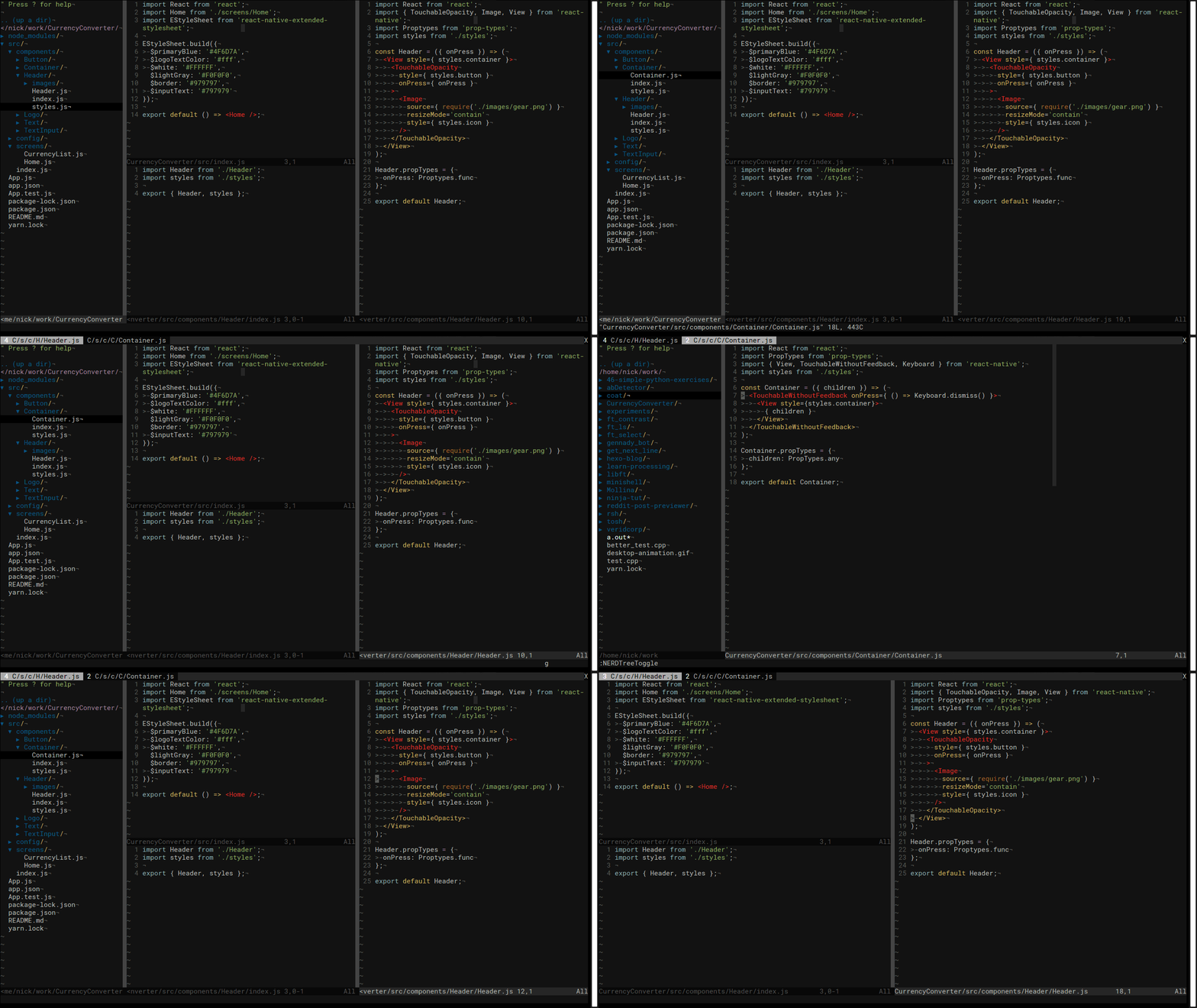
NERDtree
As you can see from the GIF above, I’m using the NERDtree plugin. If you don’t know what it is, it’s a file system explorer, just like the default sidebar in Sublime Text or other popular text editors.
This plugin makes a really great use of panes, so I thought I’d mention it.
In their F.A.Q section, they give you some great configuration commands to get started. Which is what I did, and added them in my own .vimrc.
Have a look here at my own .vimrc.
Conclusion
Phew! That was good. Right? Well I hope so. Vim is a powerful tool. I hope you felt the same power I felt after learning those tricks.
Being able to browse easily around it will make you faster while increasing your productivity. On top of that, you get to look cool for doing those so easily with your keyboard.
But remember, Vim is just a tool, try other tools to see if they fit the job ;)
Stay tuned for more, as my Vim journey to mastery has only just begun.
References
A Vim Tutorial and Primer: Daniel Miessler
Vim Splits - Move Faster and More Naturally: Toughtbot
Thanks for reading, for quick replies, follow me on Twitter and tweet me a “Hi!”. I’ll definitely DM you.